Overview
IdenTrust and ProNotary have partnered to offer a Digital Certificate for use when conducting RON transactions on the ProNotary platform.
To learn more about our partnership please visit the following link: https://www.identrust.com/partners/pro-notary
|
All Notaries: Order your X.509 certificate here: https://www.identrust.com/store/307/1613 |
We recommend utilizing the computer that you will utilize to conduct RON transactions when generating this X.509 certificate. We also recommend utilizing the Chrome browser to conduct these steps. Be sure to share your location with Identrust when prompted within the browser and avoid connecting from a remote location and be sure to utilize your local connection (no mobile networks or VPN). |
The steps below were performed on a PC with Windows as the operating system.
How to generate your X.509 certificate
After you purchase your certificate you will need to wait for an email from Identrust.
|
1
|
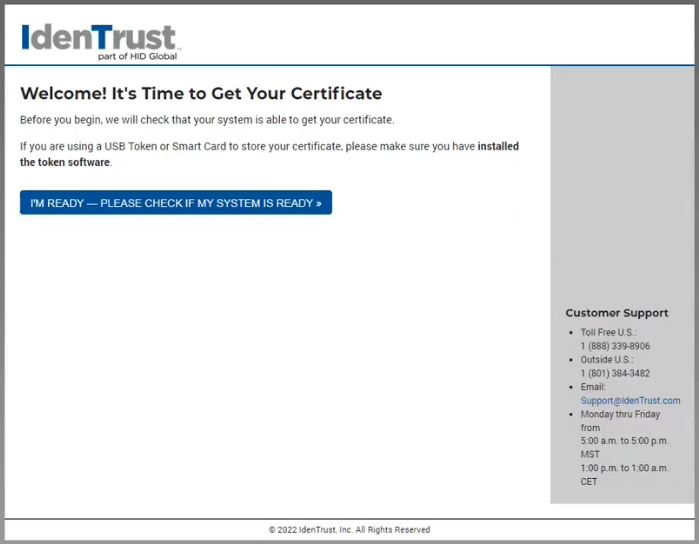
Once you receive the email, click on the link and you should arrive at a page that looks like this:
|
|
2
|
Click the "I'm Ready" button to continue.
|
|
3
|
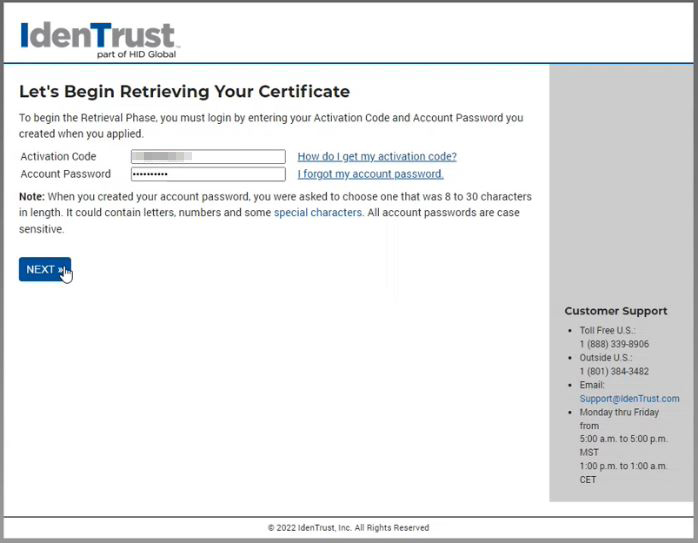
Insert your activation code and password you set upon initial registration.
|
|
4
|
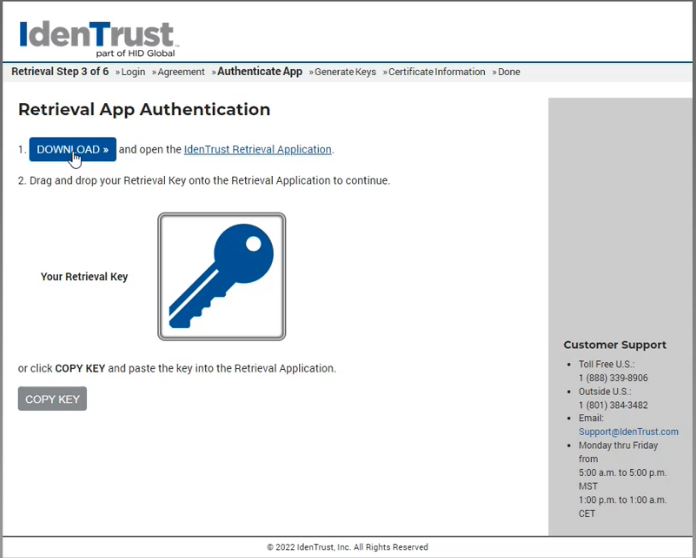
Download the Identrust Retrieval Application onto your computer
|
|
5
|
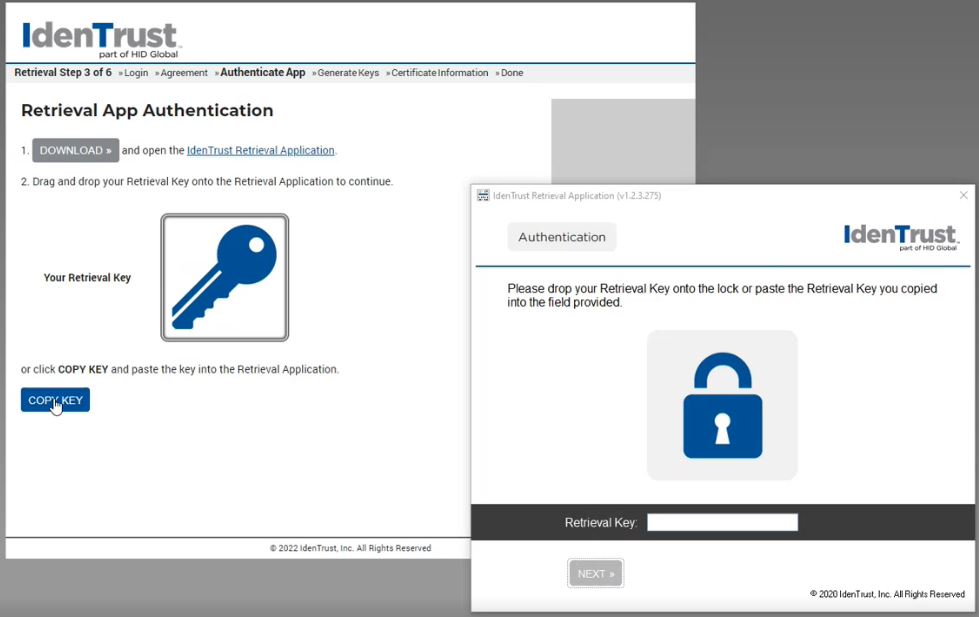
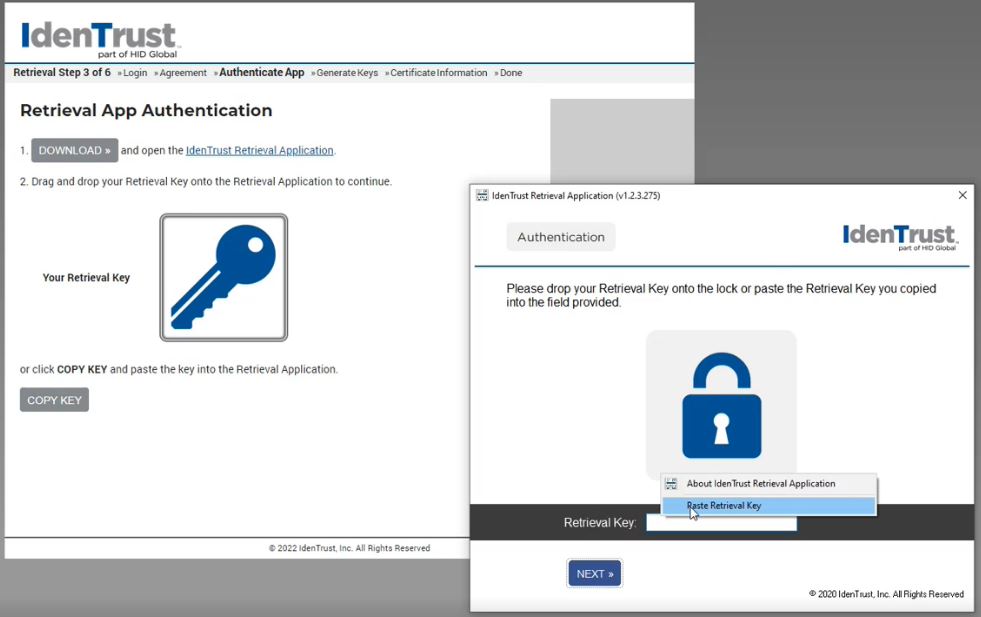
Copy the Retrieval Key
|
|
6
|
Paste the Retrieval Key and click "Next"
|
|
7
|
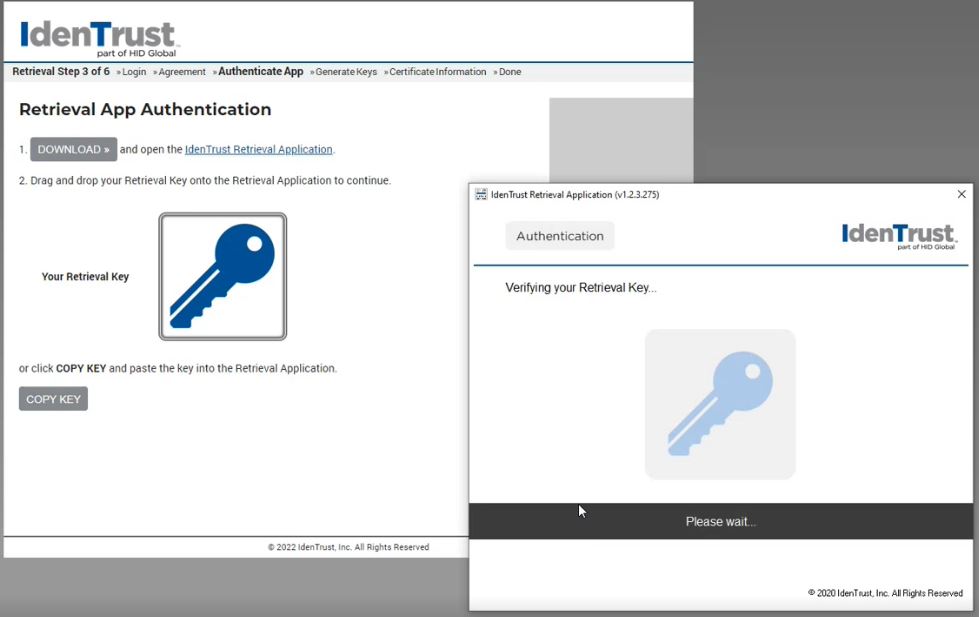
The Retrieval Application will then verify your Retrieval Key.
|
|
8
|
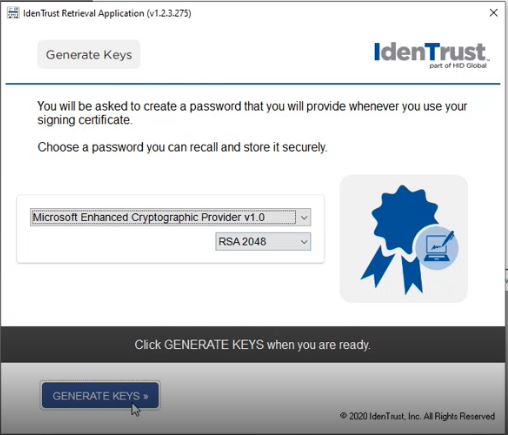
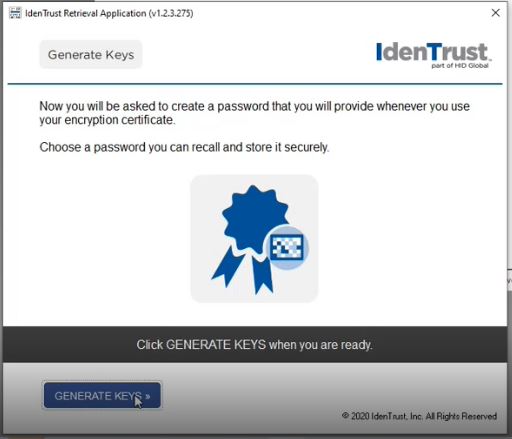
Keep the options selected above and click on "Generate Keys" to continue.
|
|
9
|
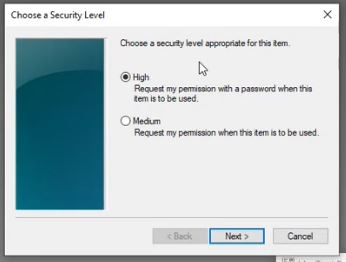
Select the security level "High" and click Next
|
|
10
|
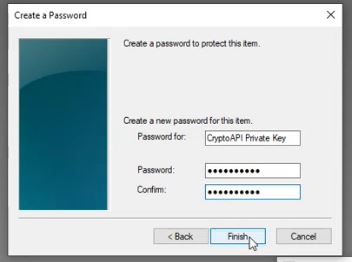
Create your X.509 Password NOTE: Keep this password safe and secure! Password recovery is not possible.
|
|
11
|
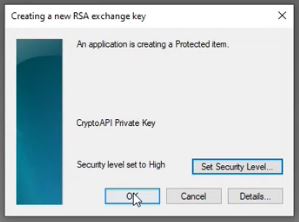
Click "OK" to continue
|
|
12
|
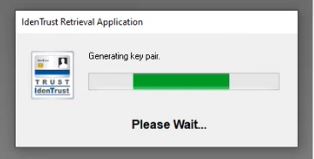
The Retrieval Application will now generate a key pair
|
|
13
|
Click "Generate Keys" to finalize the installation of your X.509 certificate
|
|
14
|
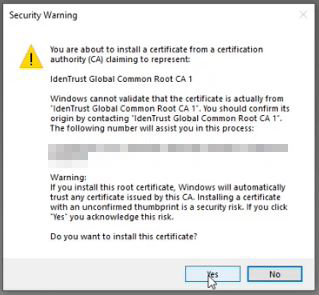
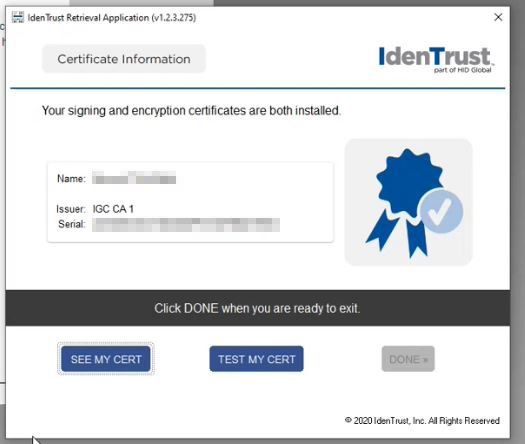
Click "Yes" to continue Congratulations! Your certificates have been installed.
|
|
15
|
Click on "See My Cert"
|
|
16
|
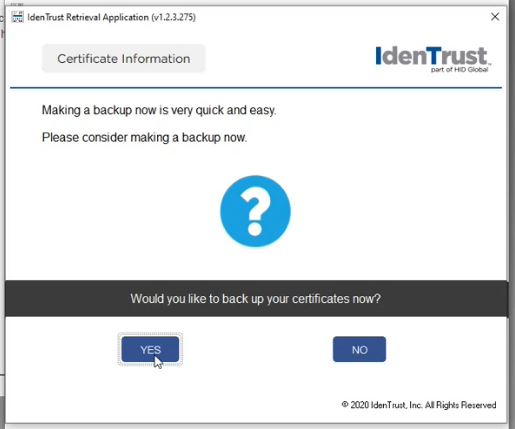
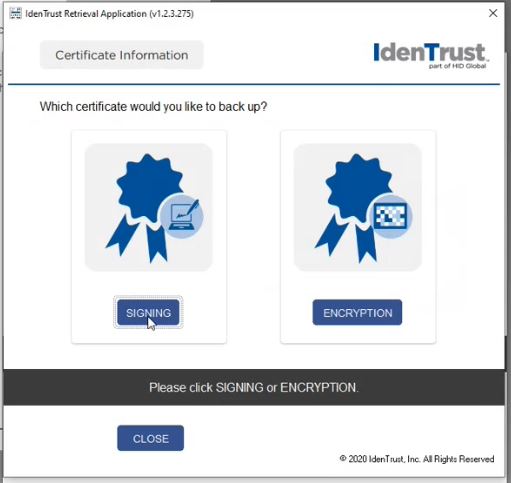
Create a backup of both certificates, first starting with the "Signing" certificate.
|
|
17
|
Click on "Signing"
|
|
18
|
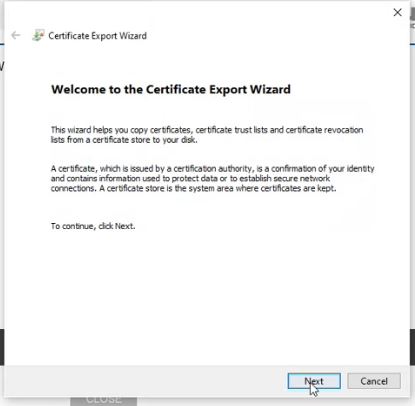
Click "Next"
|
|
19
|
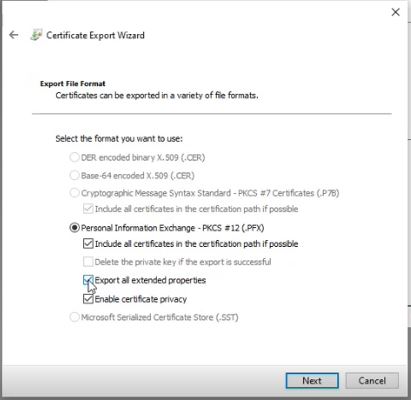
Select "Export all extended properties"
|
|
20
|
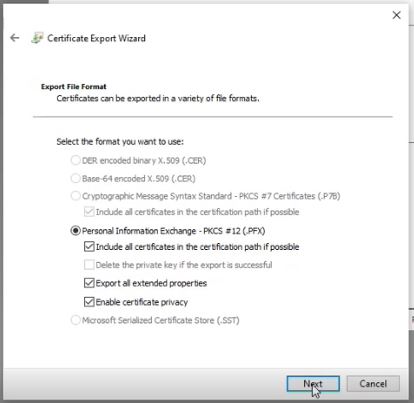
Keep the checkboxes selected as you see in the above screenshot and click "Next"
|
|
21
|
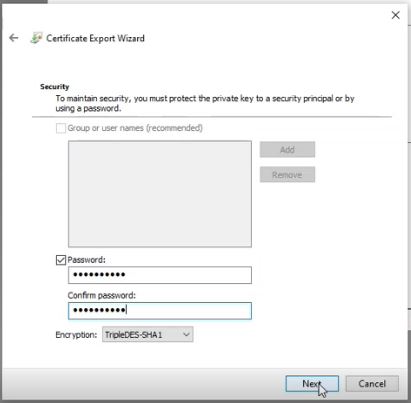
Input your X.509 password
|
|
22
|
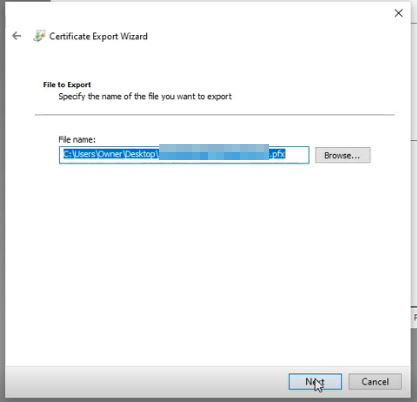
Select a path to export and save your certificate. We recommend saving it to a safe directory on your local computer.
|
|
23
|
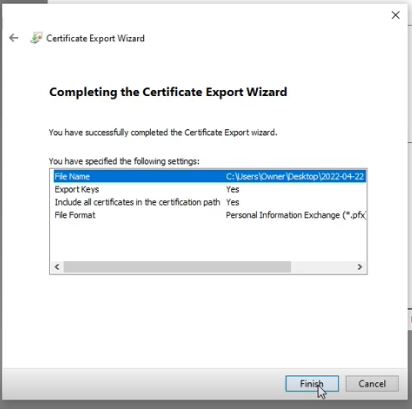
Click "Finish"
|
|
24
|
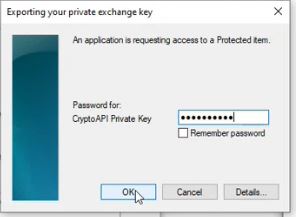
Enter your X.509 Password to confirm and continue
|
|
25
|
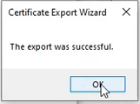
If you see this message, you have successfully completed all the steps necessary. Now you just need to repeat the same steps and backup the "Encryption" certificate. Please keep in mind, you will only use the "Signing" certificate on the Pro Notary Platform.
|
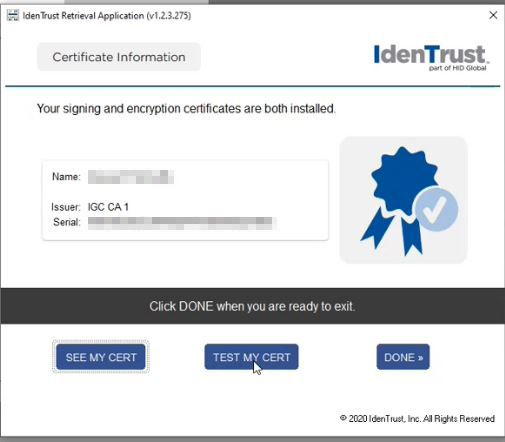
You may test your certificate if you wish to confirm the installation was successful.
Once you have saved your X.509 certificate, you will need to upload the "Signing" certificate (.pfx file) during the Notary registration process.
Once you upload your X.509, it will remain on file and you will not have to make any changes or updates until the certificate expires. Certificates expire every 1, 2 or 3 years depending on your selection during the Identrust checkout process.
If you ever need to update your X.509 certificate, you can do so under Account Settings > Notary Details > X.509 Certificate. View the article on how to update your X.509 certificate here.
Last Updated: August 21, 2026 | Author: Customer Success Team | Version: v1.1